🚀 Getting Started 📅 Panchanga ♑ Birth Chart ⏳ Dasha ☿ Gochara 🦅 Pancha Pakshi 💞 Horoscope Match 🔖 Saved Charts 📄 PDF Export
01 🚀

Getting Started

Opening the app and your first steps
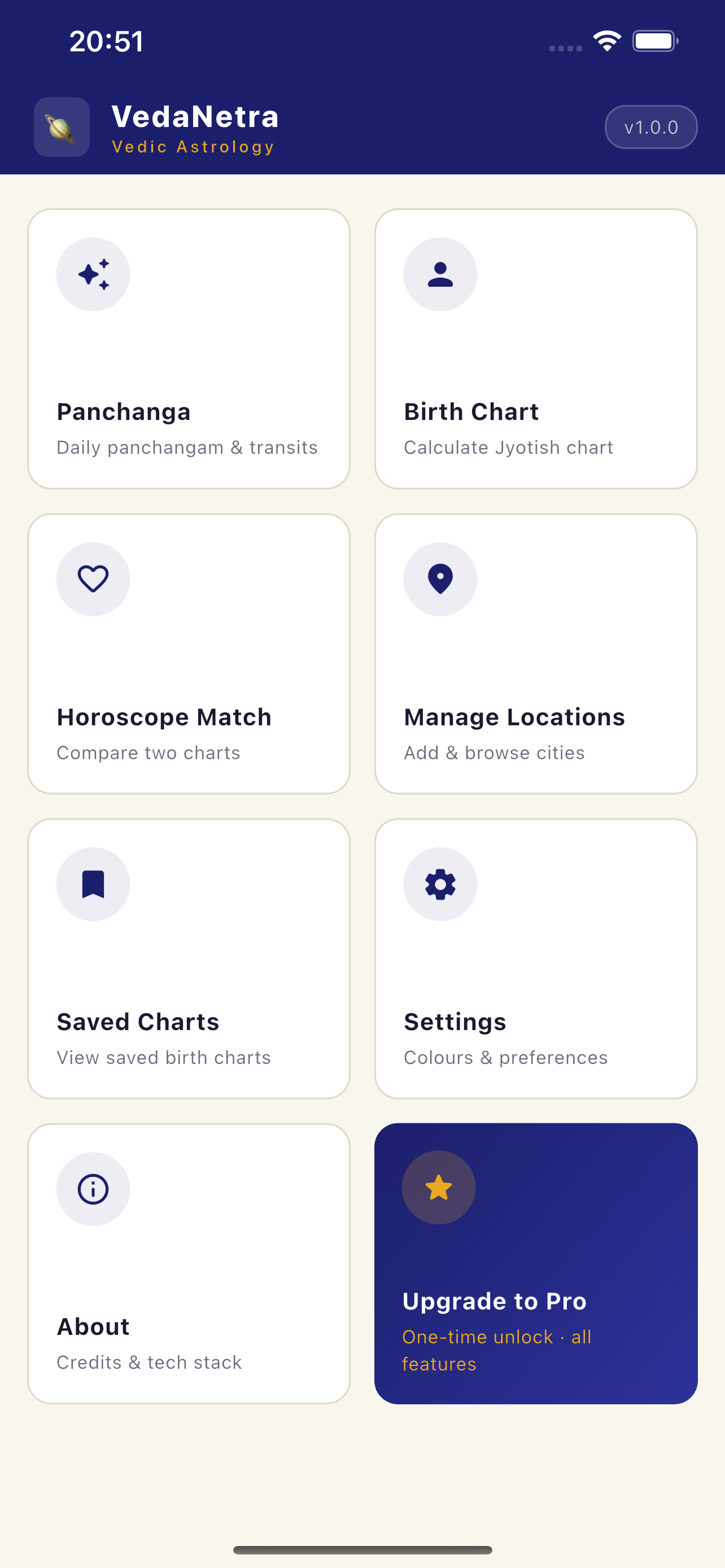
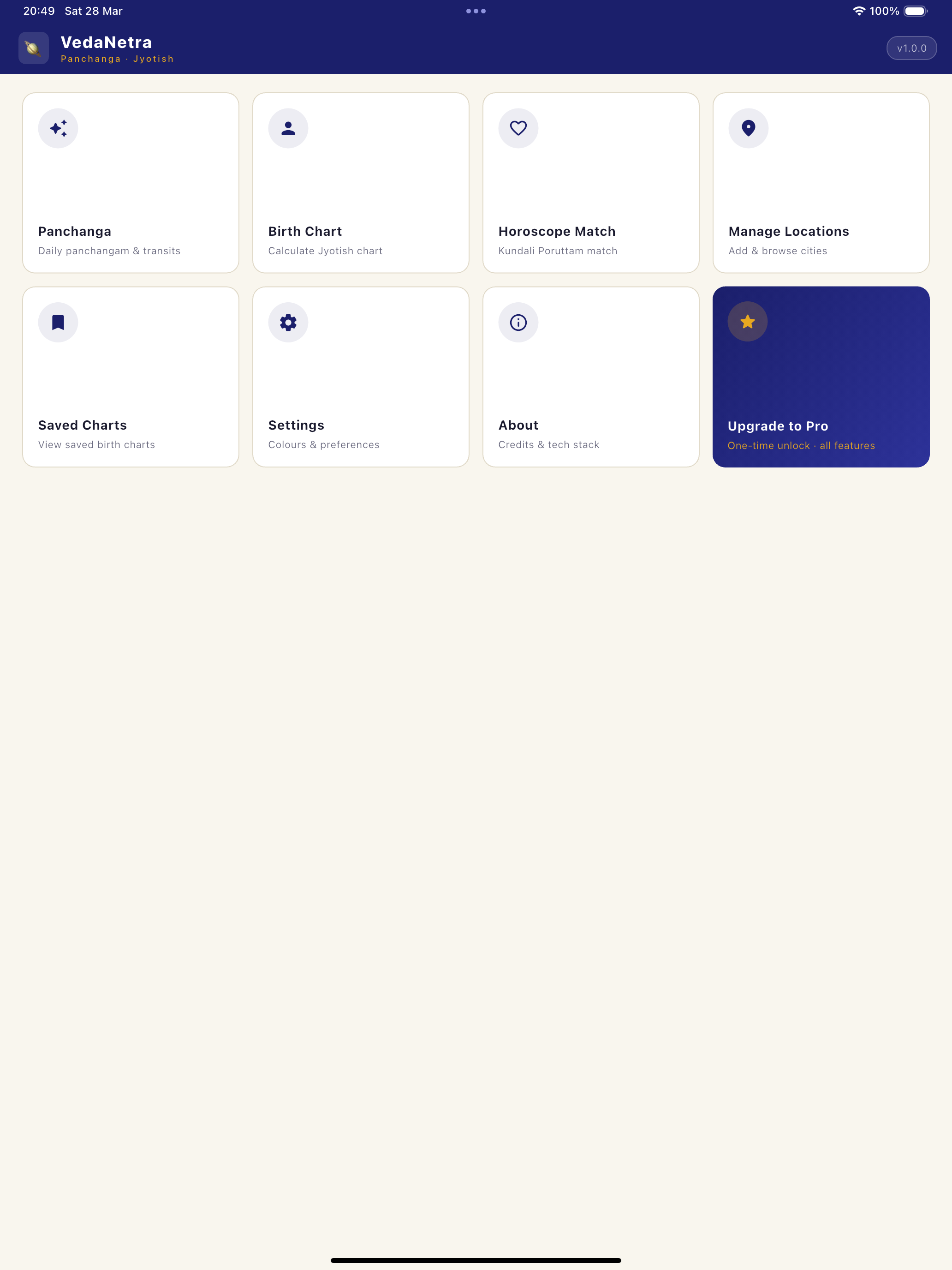
VedaNetra Home Screen VedaNetra — Panchanga tab

Navigation

VedaNetra uses a bottom navigation bar with five tabs: Panchanga, Charts, Gochara, Match and Settings. Tap any tab to switch sections instantly. No account required to use the app.

Free vs Pro

VedaNetra is fully usable for free. The core features — D1 Rasi chart, Panchanga for any date, Vimshottari Dasha, D9 Navamsa, and Horoscope Match — are all free. PRO unlocks deeper tools:

  • All divisional charts D2 through D60
  • Gochara transit date/time slider (±50 years)
  • Custom upcoming events by Tithi & Nakshatra
  • PDF export for all reports
  • Unlimited saved charts

Signing in to unlock Pro

Go to Settings → Account and tap Sign in. Once you complete a purchase, your Pro status is linked to your account and restores automatically whenever you sign in — on any device or browser.

Setting your default location

Go to Settings → Default Location and tap Change to search for your city. VedaNetra uses this location for all sunrise, sunset, Kala, and Panchanga calculations.

Tip
Set your home city first — it becomes the default for Panchanga and new birth chart entries.
02 📅

Panchanga

Daily Vedic calendar with Muhurtham analysis

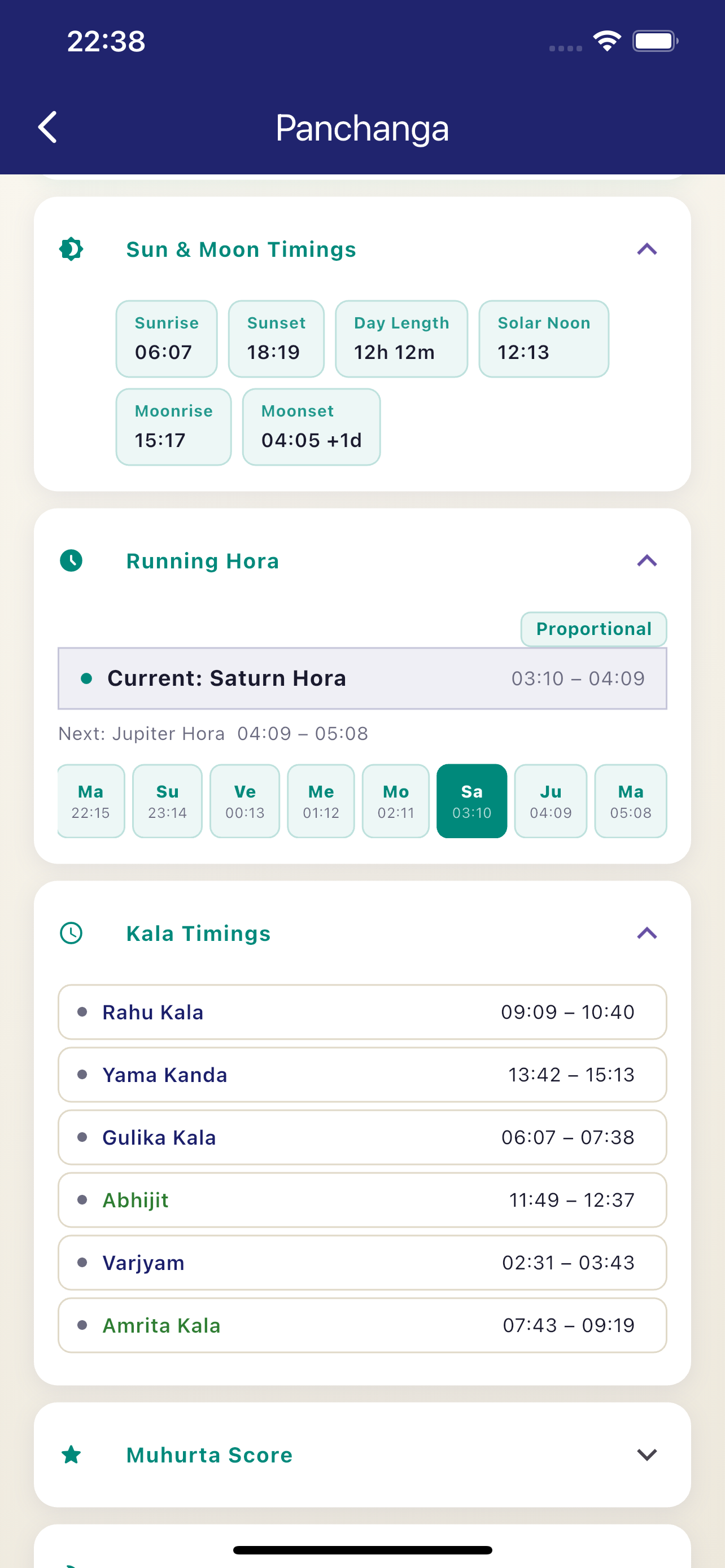
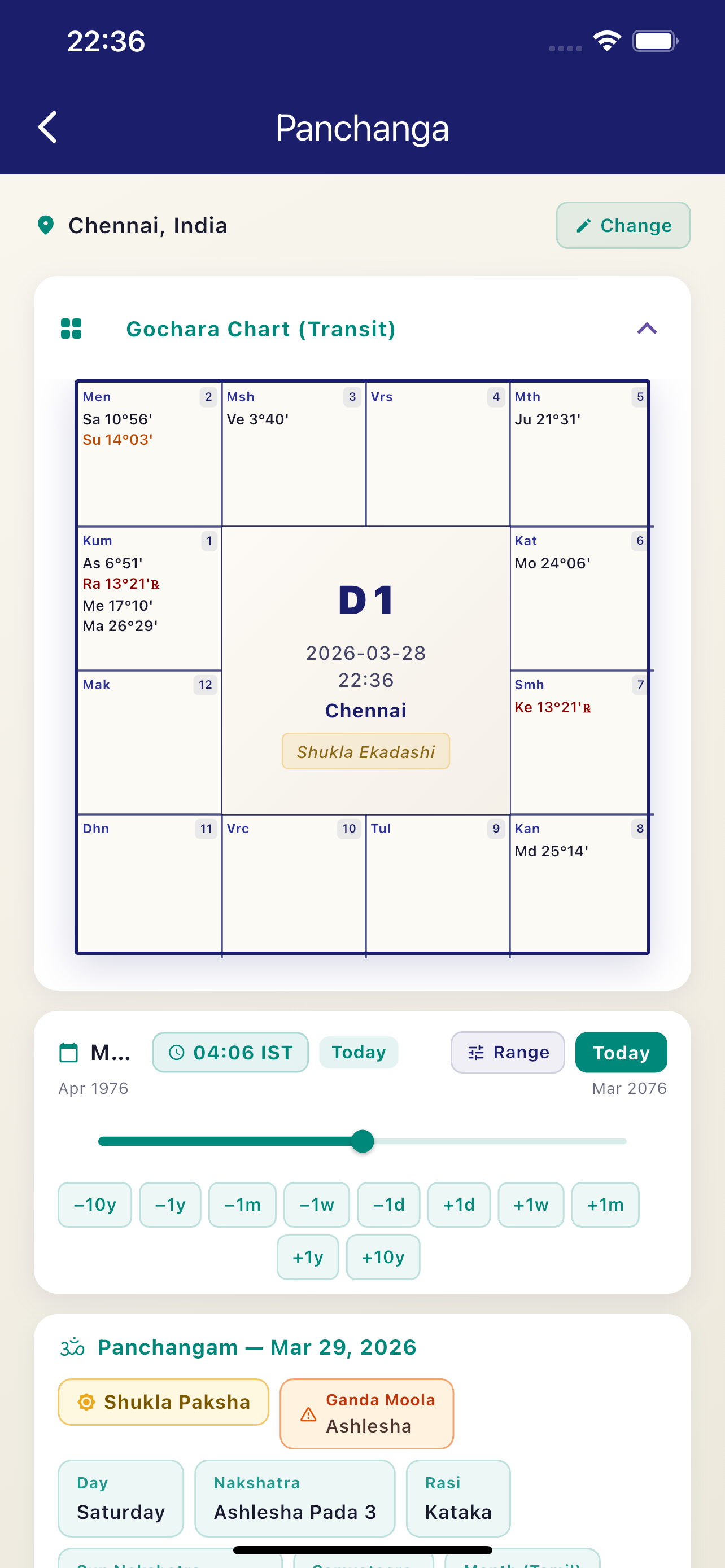
Panchanga Screen Panchanga — daily view Panchanga Muhurtham Muhurtham checklist

The Five Limbs

The Panchanga screen shows all five limbs of Vedic time for the selected date and location:

  • Tithi — lunar day with Paksha (Shukla/Krishna)
  • Vara — weekday with ruling planet
  • Nakshatra — lunar mansion with Pada
  • Yoga — luni-solar combination
  • Karana — half-tithi period

Inauspicious Periods

Rahu Kalam, Yamagandam, Gulika Kala, and Abhijit Muhurta are shown with exact sunrise-relative timings for your location. These update automatically when you change the date or city.

Muhurtham Checklist PRO

A 5-factor Lagna Shuddhi (lagna purity) assessment for each lagna window during the day. Each slot is scored for: clean lagna, 7th house, 8th house occupants, lord strength, and benefic influence. Green = auspicious, amber = caution, red = avoid.

Changing the date

Tap the date at the top of the screen to pick any date. The entire Panchanga — including Kala timings — recalculates instantly for that date.

Tip
Swipe left/right on the date to move one day forward or back quickly.
03 ♑

Birth Chart

Janma Kundali — D1 Rasi and divisional charts

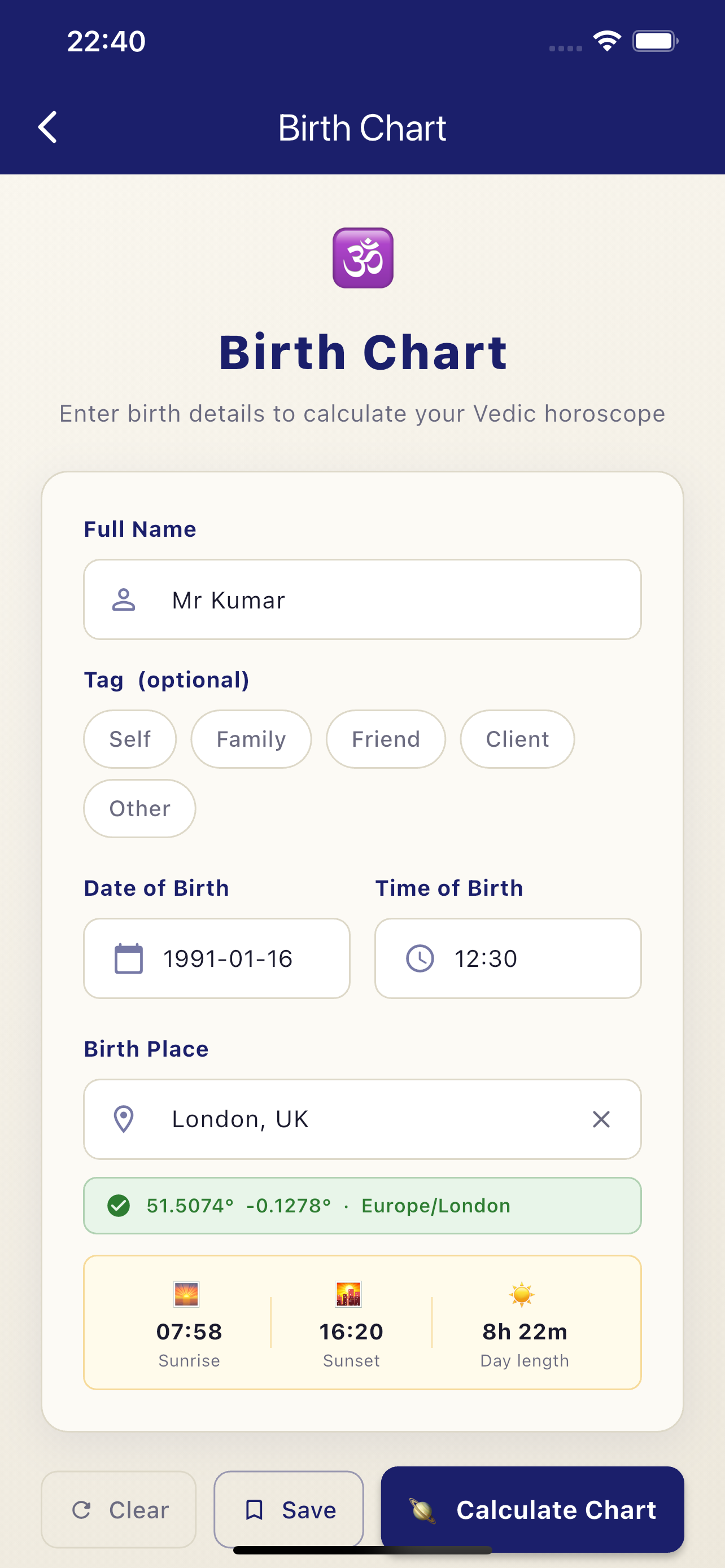
Birth Chart Screen Birth chart — D1 & D9

Entering birth data

Tap Birth Chart from the dashboard. Enter the name, date, time of birth, and birth place. As you type the city name, VedaNetra searches its built-in places database (no internet needed).

The chart view

On tablets and desktop, D1 (Rasi) and D9 (Navamsa) are shown side by side. On phones, scroll down to see the D9 below D1. Both use the South Indian grid format with Lahiri Ayanamsa.

Switching divisional charts PRO

Tap the D9 ▾ button in the top-right of the right panel to switch to any of the 16 divisional charts — D2 through D60. Each is calculated on-demand and cached for the session.

Graha positions table

Tap Graha Positions at the bottom of each chart panel to expand a detailed table showing each planet's sign, degree, nakshatra, pada, and retrograde status.

Dasha (on desktop) PRO

On tablet or desktop, tap Dasha in the top bar to open the Vimshottari Dasha timeline inline in the right panel — keeping the D1 chart visible alongside.

Tip
Tap Save in the top bar to store the chart. Saved charts are accessible from the dashboard and persist across sessions. Free users can save up to 3 charts; Pro allows unlimited.
04 ⏳

Vimshottari Dasha

Planetary period timeline from the natal Moon nakshatra

Dasha Timeline Access via Dasha button in chart

How to open Dasha

From the Birth Chart screen tap the Dasha button in the top bar. On phones it opens as a full-screen overlay; on desktop/tablet it replaces the right panel inline.

Mahadasha & Antardasha

The timeline shows all Vimshottari Mahadasha periods with exact start and end dates. Tap any Mahadasha row to expand it and see the Antardasha (sub-period) breakdown within it.

Current period highlight

The active Mahadasha and Antardasha are highlighted. The current date is marked so you can immediately see where you are in the cycle.

Tip
The Dasha is always computed from the natal D1 chart's Moon position using Lahiri Ayanamsa — the same chart you entered in Birth Chart.
05 ☿

Gochara — Transit Analysis

Current planetary positions overlaid on the natal chart

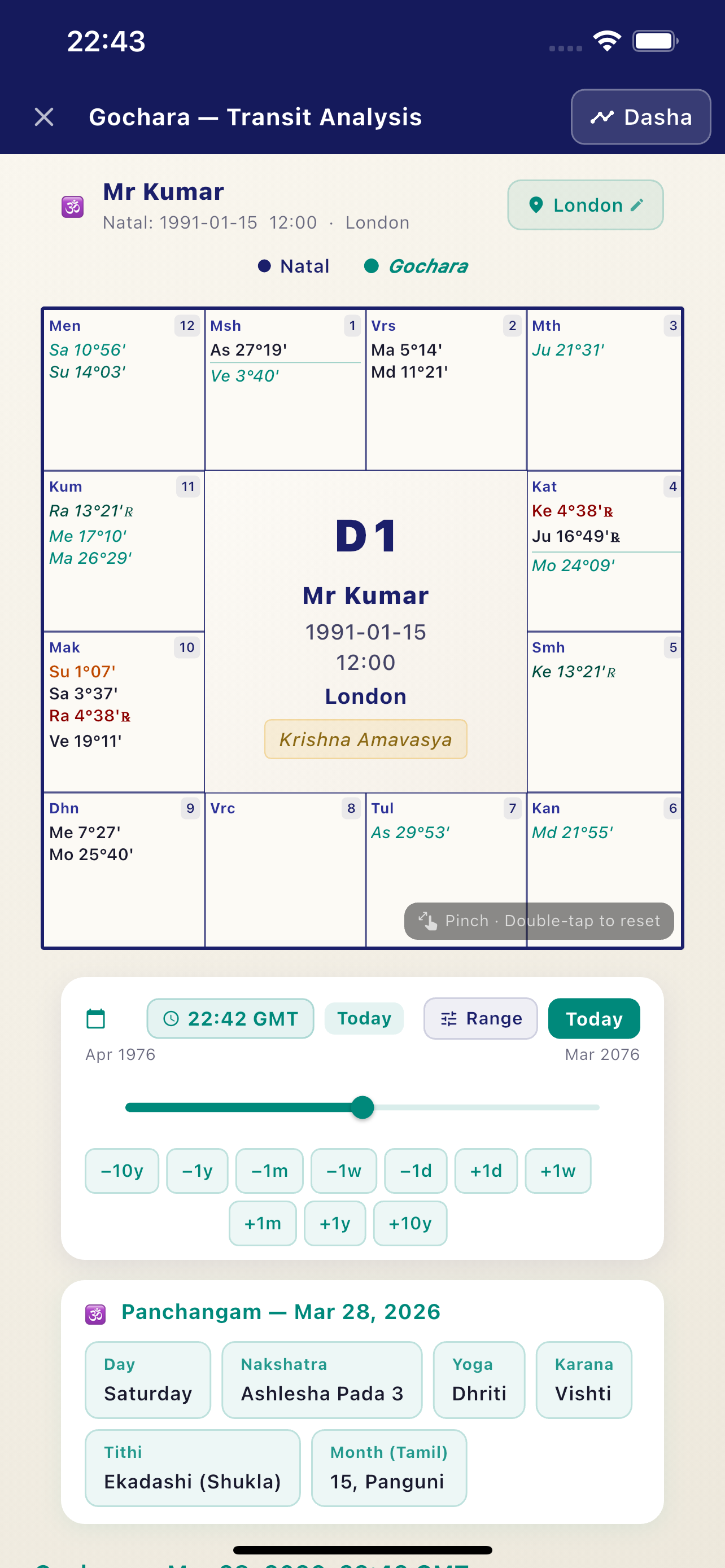
Gochara Transit Screen Gochara overlay on natal chart

Opening Gochara

From the Birth Chart screen tap Gochara in the top bar. The overlay shows today's transiting planets placed in the natal chart grid, making it easy to see which natal houses are currently activated.

Date & time slider PRO

Use the interactive slider to travel to any date within ±50 years of today. All planetary positions update in real time as you drag — useful for forecasting or retrograde research.

Reading the overlay

Transit planets are shown in a contrasting colour alongside the natal planets in each house. The lagna for the transit moment is also computed for the natal birth location.

Tip
While in Gochara, tap Dasha (top-right button) to switch directly to the Dasha view without going back to the chart.
06 🦅

Pancha Pakshi

Tamil Siddha bird system — birth bird & daily activity timing

Pancha Pakshi Screen Pancha Pakshi — daily yama view

What is Pancha Pakshi?

Pancha Pakshi is a Tamil Siddha system that assigns one of five birds — Vulture, Owl, Crow, Cock, or Peacock — to each person based on their birth nakshatra and paksha (lunar fortnight). Each bird rules specific yama periods during the day, cycling through five activity states: Ruling, Eating, Walking, Sleeping, and Dying.

Finding your birth bird

Tap Find my bird on the Pancha Pakshi screen. Enter your date of birth, time of birth, and place of birth. VedaNetra calculates your birth nakshatra and paksha from your chart and identifies your Janma Pakshi (birth bird).

Your birth bird is saved to Settings and used for all future daily timelines — you only need to enter it once.

Daily yama timeline

The screen shows today's five yama periods with the activity state of your bird in each. Ruling is the most auspicious time for important work; Dying should be avoided for new beginnings. The timeline updates automatically for the selected date and location.

Changing the date

Use the date picker at the top of the screen to view the bird timeline for any past or future date. The sunrise-relative yama boundaries recalculate for that date and your default location.

Tip
If you already know your Janma Nakshatra and Paksha, go to Settings → Default Janma Nakshatra to set it directly without entering full birth details.
07 💞

Horoscope Match

Kundali Poruttam — South Indian & North Indian traditions

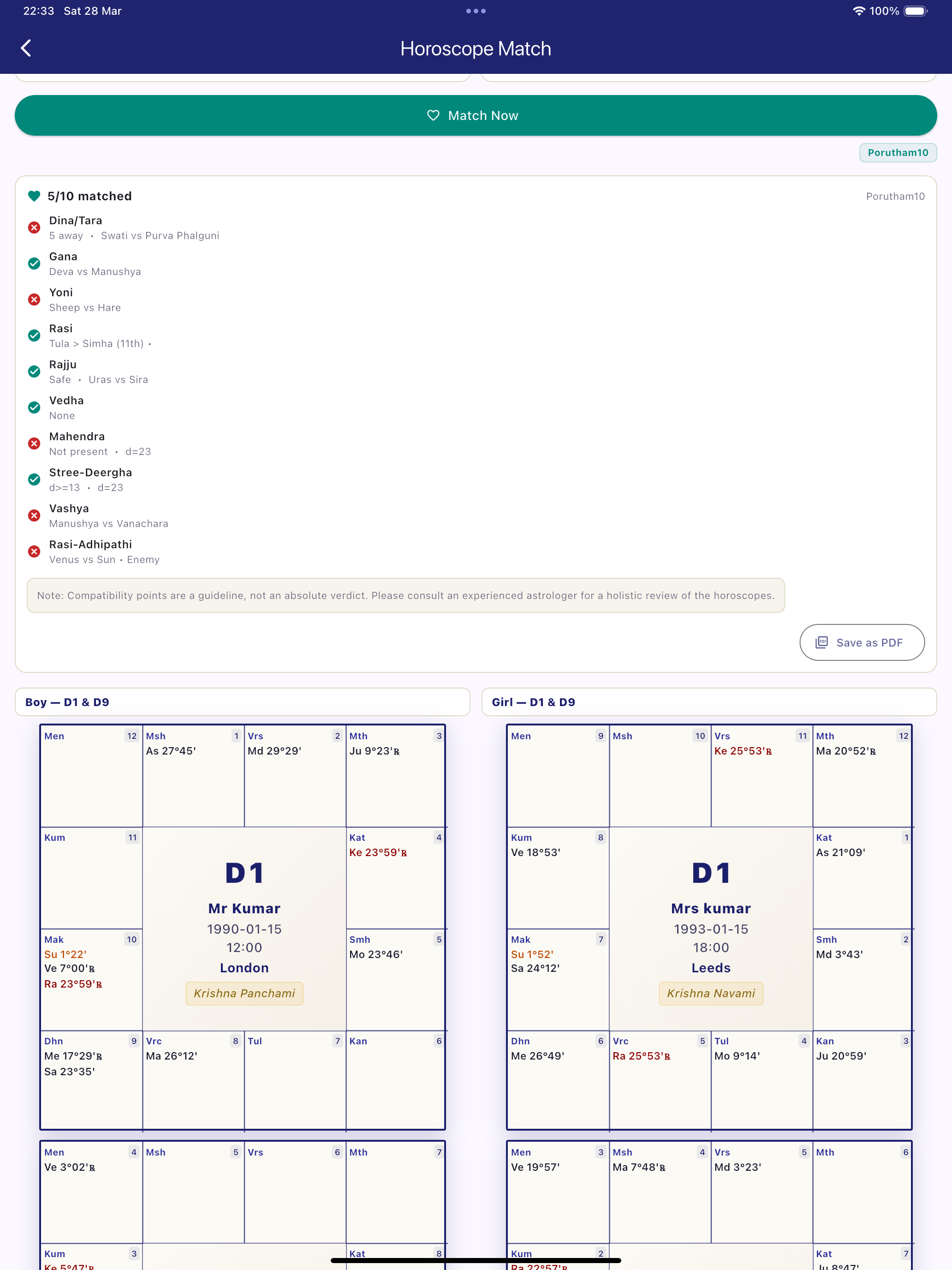
Horoscope Match Screen Match screen — iPad

Entering birth details

On the Match screen tap Boy and Girl to enter (or load from saved charts) each person's birth data. Both sets of details need to be filled before computing.

Choosing the method

Select one or both compatibility methods using the toggle chips at the top of the screen:

  • Porutham 10 — South Indian tradition with 10 poruthams including Rajju and Nadi (highest priority)
  • Ashtakoota — North Indian 8-kuta system, 36 gunas total

When both are selected, results for each method appear one after the other on the same screen.

Reading the results

Each Porutham/Kuta is listed with pass/fail status and brief notes. A summary score and overall verdict is shown at the top of each method's result. Rajju and Nadi doshas are flagged prominently.

PDF Export PRO

Tap the PDF button below the results to generate a full match report including both methods' summaries, D1/D9 charts for both individuals, and Vimshottari Dasha pages for each.

Tip
Tap Saved when entering birth details to load a previously saved chart directly — no need to re-enter the data.
08 🔖

Saved Charts

Your personal chart library

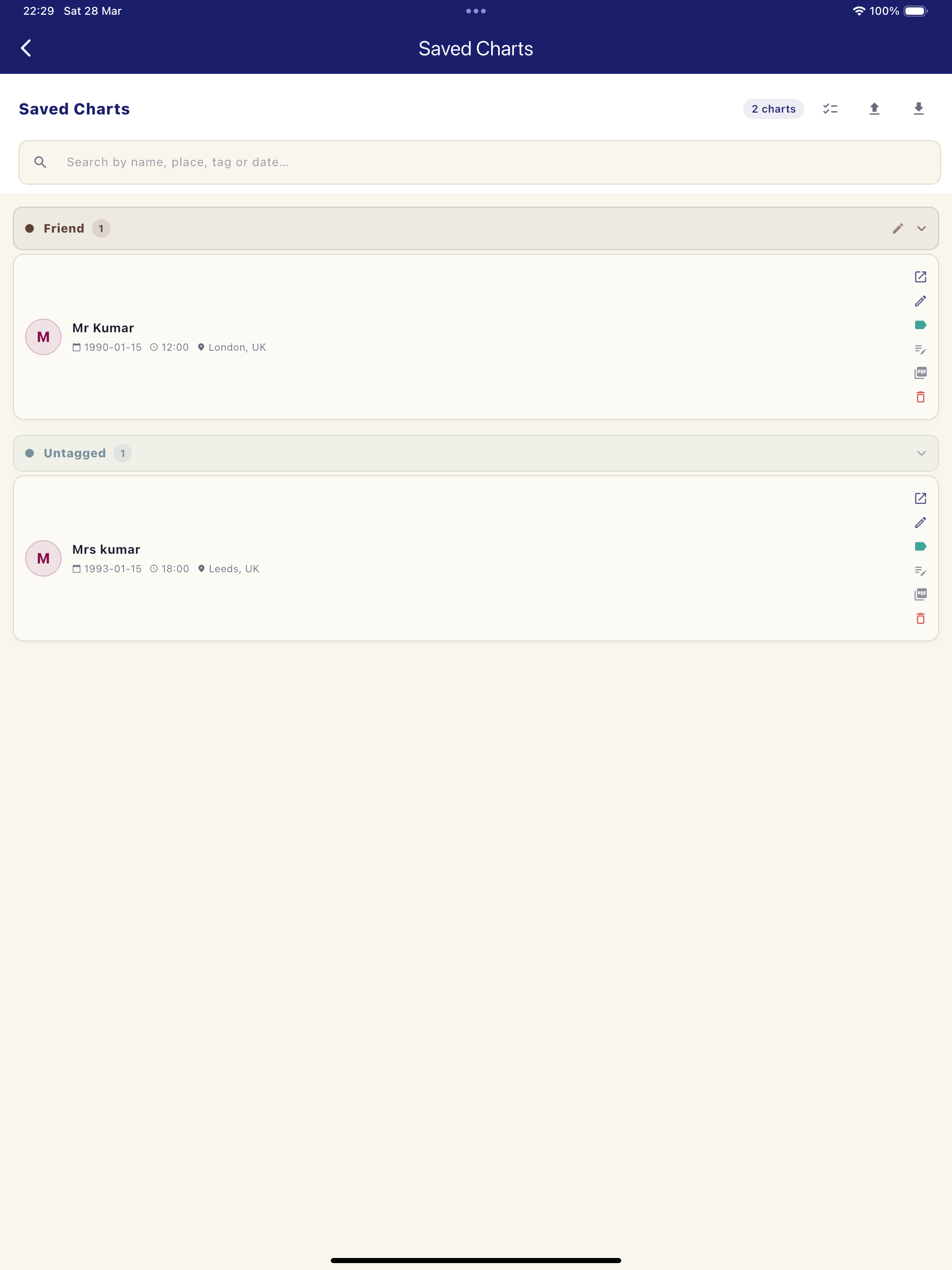
Saved Charts Screen Saved charts — iPad

Saving a chart

From any Birth Chart screen tap Save in the top bar. The chart is stored locally on your device — no cloud, no account needed. Free users can save up to 3 charts; Pro allows unlimited.

Organising with tags

When saving (or editing) a chart you can assign a tag — Self, Family, Friend, Client, or a custom label. Tags are shown in the saved charts list for quick filtering.

Opening a saved chart

Tap Saved Charts from the dashboard to browse your library. Tap any entry to open the full chart view. You can also load saved charts directly from the Match screen.

Editing & deleting

Swipe left on any saved chart entry to reveal Edit and Delete options. Editing re-opens the birth details form pre-filled with the saved data.

Tip
Use the CSV export (Settings → Export) to back up your chart library or transfer it to another device.
09 📄

PDF Export PRO

Professional printable reports for all three modules

VedaNetra on iPad VedaNetra on iPad Pro

Birth Chart PDF

From the Birth Chart screen tap PDF in the top bar. The report includes the D1 Rasi chart, D9 Navamsa chart, full Graha positions table, Panchanga for the birth date, and complete Vimshottari Dasha timeline — all on a clean A4 layout.

Panchanga PDF

From the Panchanga screen tap the PDF icon. The multi-page report includes:

  • Gochara transit chart for the selected date
  • Lagna Transit table with Hora, lord strength, and Muhurtham flags
  • Hora Schedule for the day
  • Tara Bala table for all 27 nakshatras
  • Muhurtham checklist with Lagna Shuddhi scores
  • Chandra Bala and nakshatra quality table

Horoscope Match PDF

After computing a match, tap the PDF button. The report includes all selected method summaries, D1/D9 charts for both individuals, and individual Dasha pages for boy and girl.

Sharing & printing

All PDFs open in the system share sheet — print directly, save to Files, share via email, or send to any app. The PDF is generated entirely on-device in under two seconds.

See it before you buy
Download sample PDFs from our Sample Reports page to see exactly what the Pro output looks like.
09 🔯

Rasi Reference Chart

Planetary rulerships, exaltation, debilitation and friendship at a glance

The interactive Rasi Reference shows all 12 signs with their ruling planets, exalted and debilitated placements, friendly planets, house groups (Kendra / Trikona), planetary aspects, and Benefic / Malefic classifications — in both English and Tamil.

Use it as a quick lookup when reading any chart generated by VedaNetra.

Open Rasi Reference →

See the Pro reports before you upgrade

Download real sample PDFs — a full Birth Chart report and a Panchanga almanac — generated directly by VedaNetra.

View Sample Reports →